A digital business card is the easiest thing in the world to make badly. Five minutes in a free app, a link nobody saves, done. Most guides on how to make a digital business card stop there. The harder job, and the one worth your time, is making a card people actually keep. This covers both: the quick free version and the one that earns a second look.
A digital business card is a web page that holds your name, title, contact details and links, shared by a tap, a scan or a link. You can build a basic one free in a few minutes with an app or a design tool. You can also put it behind a physical card that opens it on a tap. The steps below work for all three.
What you need to make a digital business card
Three things, and none of them cost much. A place to host the card, the details you want on it, and a way to share it.
- An account with a digital card builder or a design tool. Most have a free tier that covers the basics.
- Your core details: name, title, company, phone, email, and the two or three links that matter, such as your site, LinkedIn or portfolio.
- A photo or logo, cropped square, so it sits cleanly at the top of the card.
That is the whole shopping list for a software card. If you want a physical card that opens the page on a tap, you add one more thing, an NFC card, which we get to below.
How to make a digital business card in five steps
The process is the same across almost every builder. You fill a page, style it, and get a link or QR code out the other end.
- Pick a builder or template. A dedicated card app, a free digital profile service, or a design tool like Canva all work.
- Add your details: name, title, company, phone, email, and your key links.
- Add a photo or logo and set your colours so the card looks like you, not the template.
- Add a save-contact button so the other person keeps your details in one tap, not by retyping them.
- Publish, then share the link or QR code, and test it on a second phone before you rely on it.
Five minutes start to finish. The save-contact button is the step people skip and the one that decides whether your card ends up in a phone or a forgotten browser tab.
One habit worth keeping: open your finished card the way a stranger will, in a fresh browser with no saved logins. It is the fastest way to catch a broken link, a missing photo, or a save-contact button that does nothing. Fix what you find before the card is in anyone's hands.
The three ways to make one, and which to pick
There are three honest routes to a digital business card. They differ in how they get from your hand to someone else's phone.
| Design tool | Card app | NFC card | |
|---|---|---|---|
| Best for | A one-off, DIY look | Quick free sharing | Daily in-person networking |
| How you share it | Export an image or QR | Link, QR, sometimes wallet | Tap, plus link and QR |
| Updating details | Re-export every time | Edit online anytime | Edit online anytime |
| Cost | Free to low | Free tier, paid upgrades | Card price, profile often flat |
A design tool gives you a pretty picture you still have to send. A card app gives you a living page you share with a link. An NFC card gives you the page plus a physical object that opens it on a tap, which is the only one of the three that works when your phone is in your pocket.
Most people end up using two of these, not one. A free card app or profile to hold the page, and an NFC card to share it face to face without the QR-scanning dance. The design tool only earns its keep if you want a printed card to match, or there is no builder you trust.
What to put on a digital business card
More room than paper does not mean fill it. The cards that get saved are short and obvious.
- Name and title, large and first.
- One photo or logo, not both fighting for the top.
- Phone and email as tappable buttons, not plain text.
- Two or three links, ranked, so the one you most want clicked sits first.
- A clear save-contact button.
Leave the rest off. A wall of social icons reads as noise, and the recipient decides in seconds whether to save you. The longer version of this is in our guide on building a profile that gets saved.
A quick gut check: if you handed this card over and watched the person read it, would they know in three seconds who you are and what to tap? If not, cut something until they would.
How to make a digital business card for free
You can get a working card for nothing. The free tiers of most builders cover a single card with your details, a link and a QR code, which is everything a digital card needs to do its job.
The limits show up later. Free plans often cap you at one card, brand the page with their own logo, or hide analytics and multiple links behind a subscription. For a student, a side project or a first card, free is the right call. The Discard digital profile is free to build and use, so you can see your own card before deciding whether you want it on metal.
The honest test for free versus paid is volume and team. One person handing out one link is well served by a free plan for years. The moment you need several cards, real analytics, or a consistent look across a team, you are paying for something, and that is fair. Pay for the features you will actually use, not the longest feature list on the pricing page.
How to add a digital business card to Apple Wallet and Android
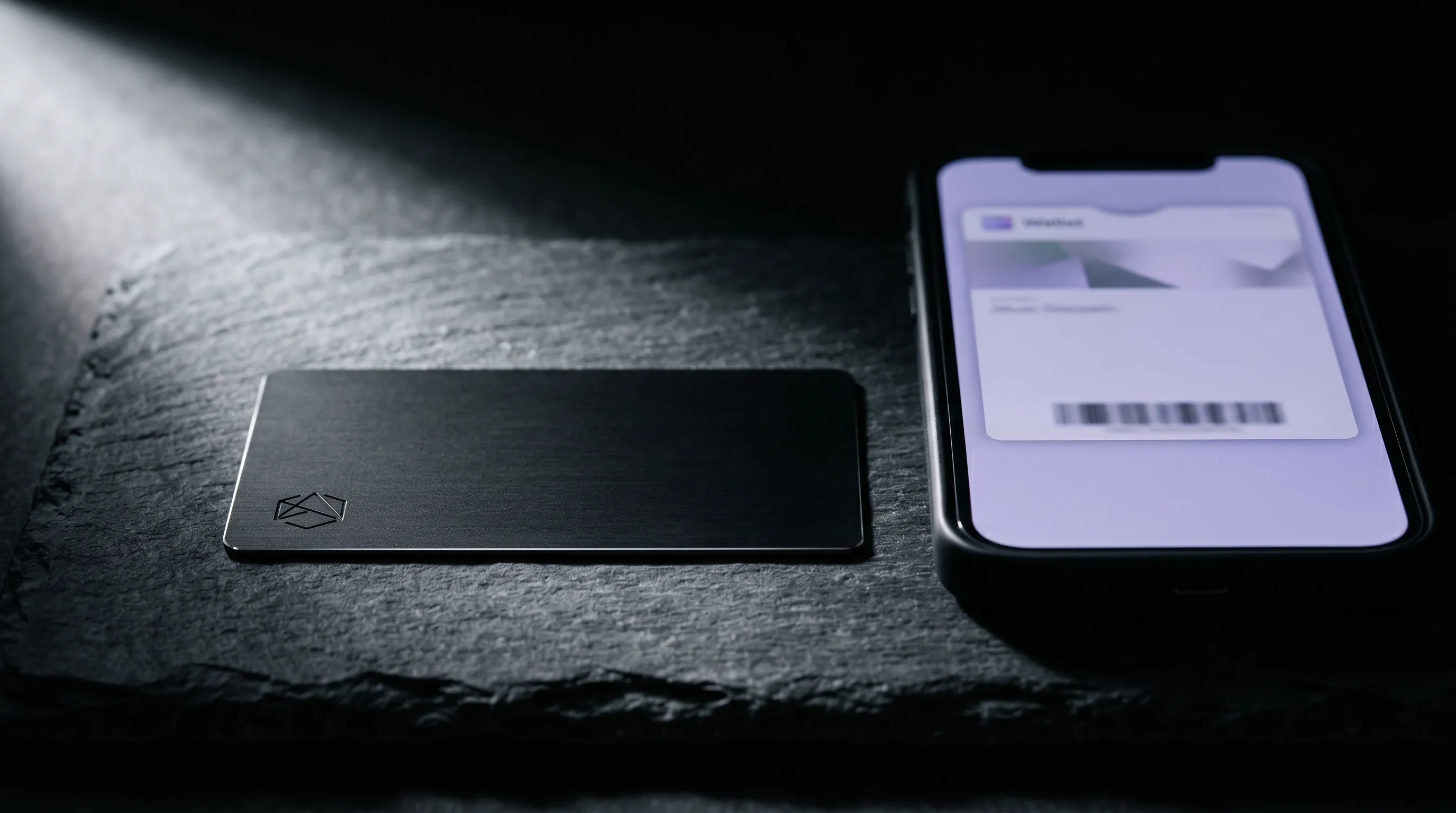
A wallet pass puts a slimmed-down version of your card in the phone's wallet app, next to the boarding passes and tickets. It is handy because it survives even when you have no signal.
On iPhone, you add a card to Apple Wallet by opening the pass file or link your builder gives you and tapping Add. On Android, the same idea lives in Google Wallet. Not every builder offers a wallet pass, so check before you commit if that matters to you. A wallet pass is a nice extra, since it shows less than the full page and cannot carry your portfolio. The fuller comparison is in NFC cards versus Apple Wallet passes.
The Android steps mirror the iPhone ones. Open the pass from your builder, choose Add to Google Wallet, and it lands beside your other passes. Older phones and some stripped-down Android skins bury or omit Google Wallet, so if you cannot find it, a plain link or QR code does the same job with less fuss.
How to share a digital business card
A card you cannot share fast is just a web page. Good builders give you several ways out, so you can match the moment.
- A QR code for printed materials, slides and screens. It is the universal fallback every phone camera reads.
- A plain link for email signatures, messages and bios.
- A tap, if the card sits on an NFC chip, which needs no app on either phone.
The email signature is the quiet winner. Put your card link under your name, set it once, and every message you send becomes a soft introduction.
Why a physical NFC card finishes the job
A software card solves the data. It does not solve the moment. In a real introduction, you are not going to ask someone to scan a QR code off your screen while you both stand there.
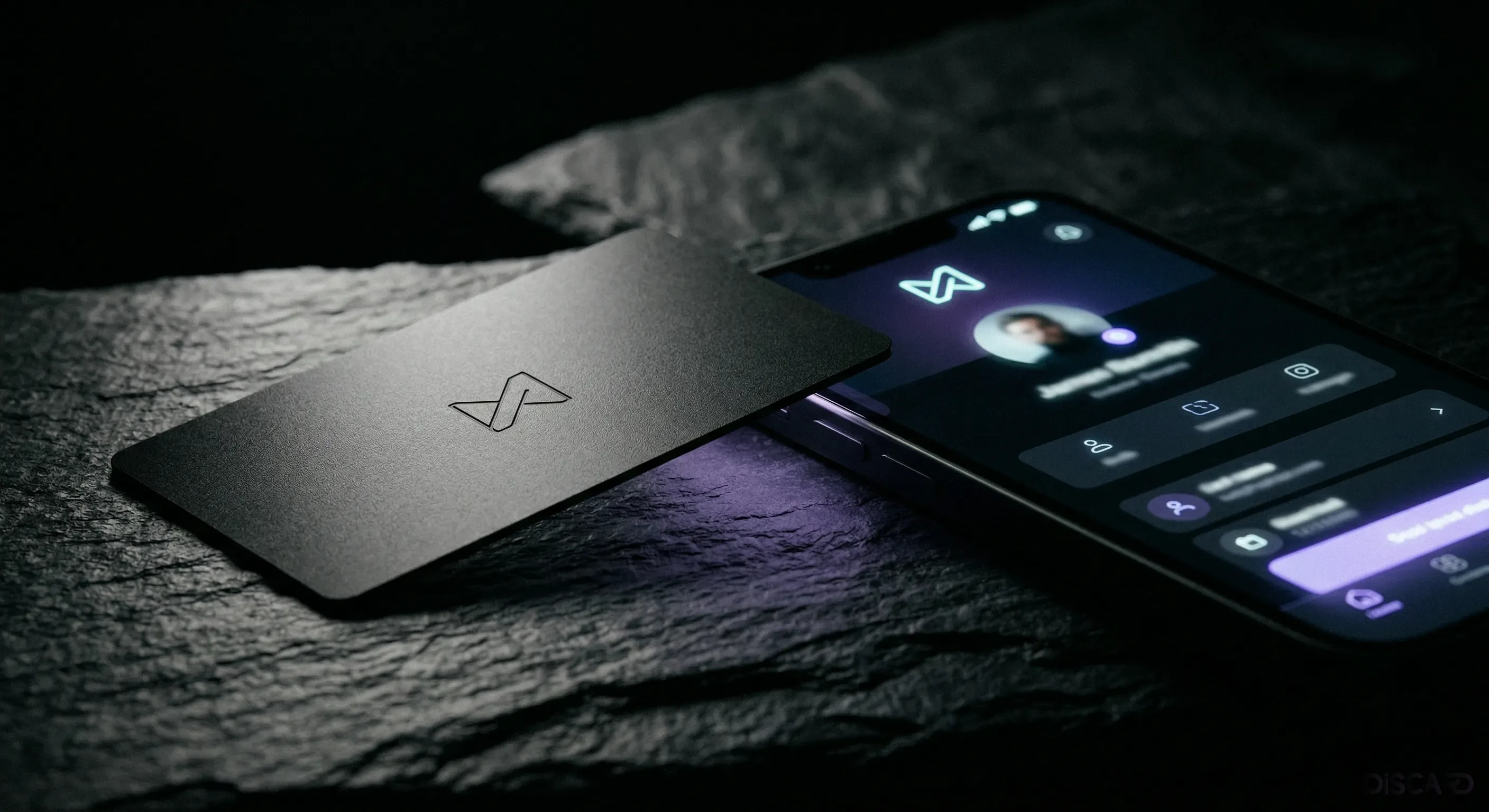
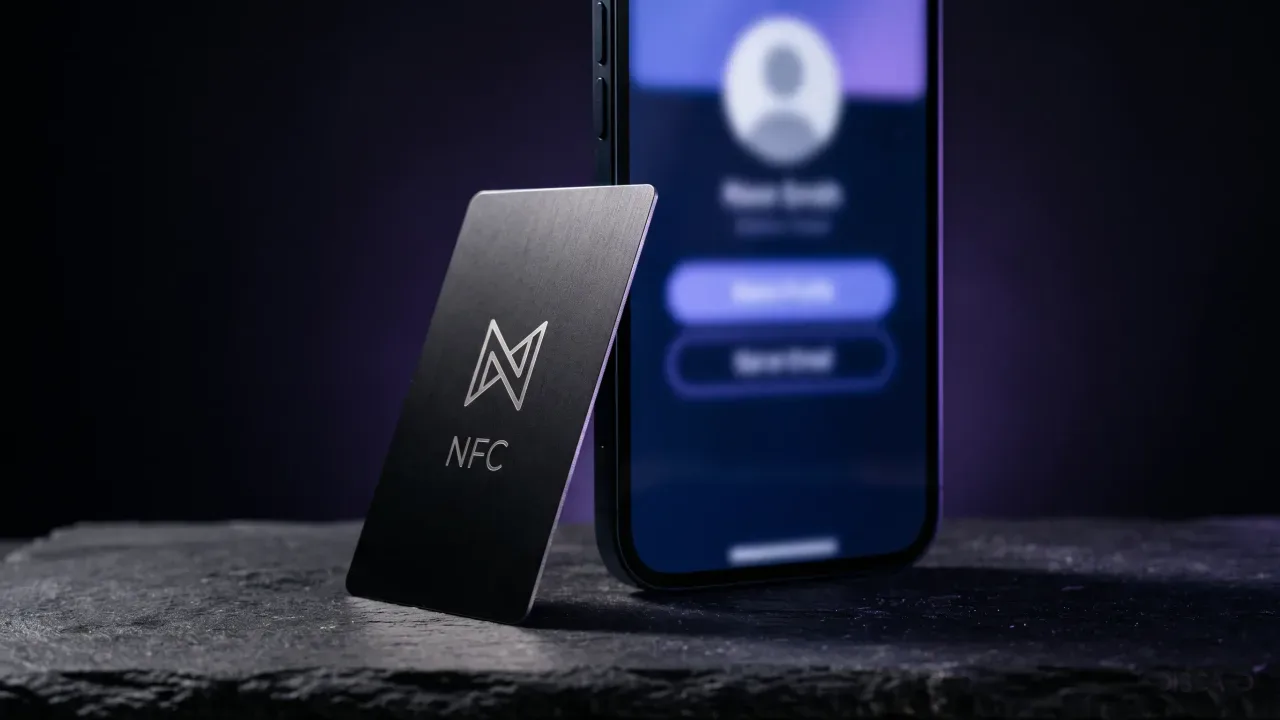
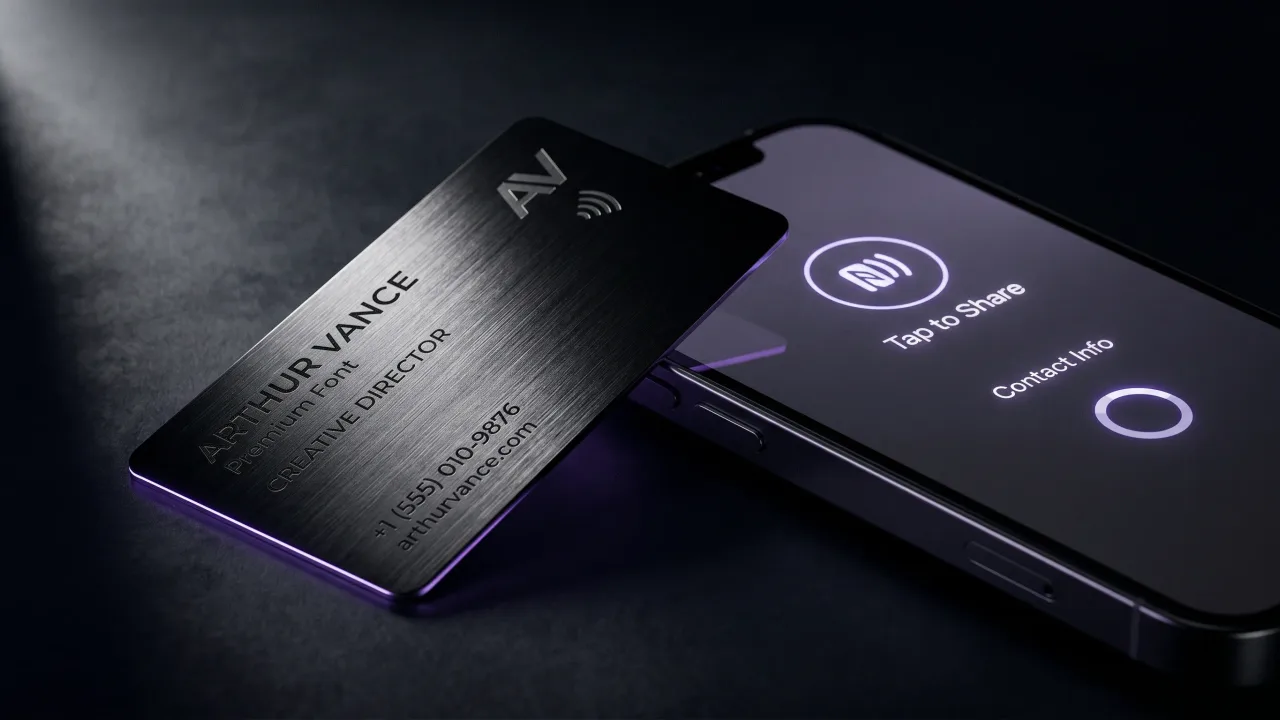
This is where a physical card earns its place. A metal NFC card holds the same digital profile, but it opens on a tap, with no app to install and nothing to scan. Any modern phone reads the chip, because it follows the standard the NFC Forum maintains. The card is the handshake; the profile is everything behind it. You design it in the configurator, and because the chip points to a page you edit, a new job or number never means a reprint.
There is a status element to it too, and pretending otherwise is silly. A heavy engraved card says you took the introduction seriously. A link in a text message says you had thirty seconds and a phone. Both carry the same profile, but only one of them gets remembered on the walk back to the car.
The verdict: make it free, then make it last
Making a digital business card is not hard, and that is exactly why most of them are forgettable. Spend the free five minutes, fill the page properly, add the save-contact button, and you will have a card that beats paper on every count that matters. A link alone still asks the other person to do the work of saving you. If you network in person for a living, the version that lasts is the one tied to a physical card that opens your profile on a tap. Make the free one today to learn what you want on it. Put it on metal when you are ready to stop being forgotten.
Build your digital profile free, then design a metal NFC card that opens it on a tap, with no app required.
Design your cardFrequently asked questions
How do I make a digital business card for free?
Most digital card builders have a free tier that covers one card with your details, a link and a QR code. Sign up, fill in your name, title and key links, add a photo, and publish. The Discard digital profile is free to build and use.
Can I add a digital business card to Apple Wallet?
Yes, if your builder offers a wallet pass. Open the pass file or link it gives you and tap Add to Wallet. On Android the equivalent is Google Wallet. Not every builder supports wallet passes, so check first.
What should a digital business card include?
Your name and title, a photo or logo, tappable phone and email, two or three key links, and a save-contact button. Keep it short. A crowded card gets closed before it gets saved.
Do digital business cards work without an app?
Yes. The card is a web page, so anyone opens it in a browser from a link or QR code, no app needed. NFC cards also work app-free, since the tap just opens a link the phone already knows how to read.
Are digital business cards free?
You can make a basic one for free on most platforms. Paid plans add things like multiple cards, analytics, custom branding and team features. For one personal card, the free tier is usually enough.
What is the difference between a digital business card and an NFC card?
A digital business card is the web page with your details. An NFC card is a physical card with a chip that opens that page on a tap. The NFC card is how you share the digital card in person without scanning or typing.