Your iPhone already has a digital business card built in, and most people never find it. They download an app instead and pay for roughly the same thing. Before you install anything, it helps to know how to make a digital business card on iPhone with the tools already on the phone, and where those tools quietly run out.
A digital business card is a set of contact details someone can save in one tap, shared by a link, a QR code, a phone-to-phone tap, or a Wallet pass. On iPhone you have native ways to do all of that for free, plus a lot of apps competing to do it with more polish. This guide covers both, starting with the one that costs nothing and is already sitting in your Contacts.
The digital business card already built into your iPhone
Open Contacts and look at the top for My Card, the entry with your own name on it. That card is a shareable contact. Fill it in properly and it becomes a working digital business card you can hand over with no app at all.
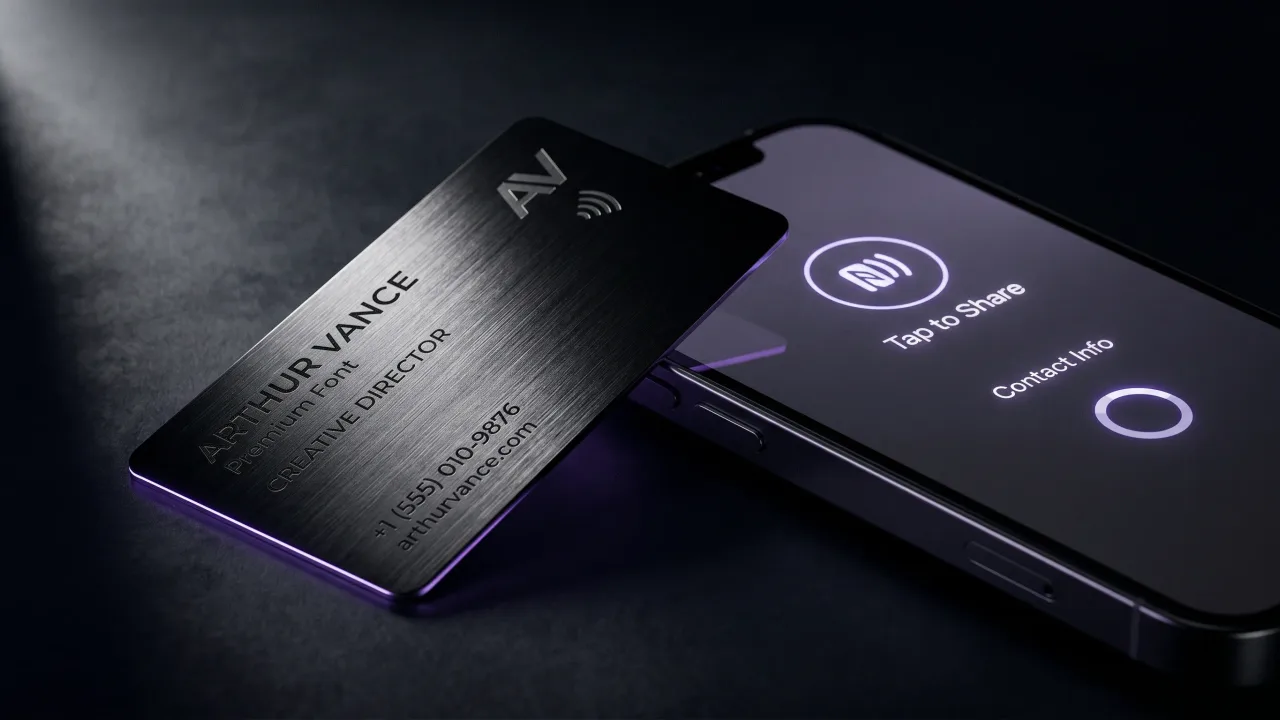
Tap your card, choose Share Contact, and iPhone offers AirDrop, Messages, Mail, or a link. On iOS 17 and later you can also hold your iPhone near another one and use NameDrop to swap details with a touch, no scanning and no typing. It is the closest thing Apple makes to a paper card, and it is free.
The catch is that it only shares raw contact fields. There is no clickable booking link, no branding, and nothing the other person sees before they save it. For a quick swap between two iPhones it is perfect. For a card that represents your work, you will want more control, which is where a dedicated profile comes in.
How to make a digital business card on iPhone, step by step
There are two routes. The native route uses Contacts and takes two minutes. The profile route uses a free builder and gives you a real web page. Here is the profile route, since it is the one most people actually want.
- Open a free profile builder in Safari or from the App Store and start a new card.
- Add the essentials: name, title, company, one phone number, one email, and the single link you most want tapped.
- Add a photo or logo so the page looks like yours, not a template.
- Save the page and copy its web address. That URL is your card.
- Add it to Apple Wallet if the builder offers a pass, so it rides in the same place as your boarding passes.
- Test everything by opening the link and the QR code on a second phone before you hand it out.
The native route is shorter: open Contacts, edit My Card until every field is right, then use Share Contact. No web page and no branding, but nothing to sign up for either. If you later want a physical card that opens the same page on a tap, programming an NFC card is a separate five-minute job.
How to add your business card to Apple Wallet
Apple Wallet is not only for payment cards. It holds passes, and a digital business card can be one of them, which means it opens from the lock screen without hunting through your apps.
Most builders that support Wallet give you an Add to Apple Wallet button once the card is finished. Tap it on your iPhone and the pass installs. From then on you open Wallet, pick the card, and show its QR code for someone to scan. Some passes even surface on their own when you are at the right venue or event.
The native Contacts card does not become a Wallet pass by itself. If Wallet is where you want your card to live, use a builder that generates a pass. If you would rather keep it simple, leave the two apart and share Contacts by NameDrop or a link.
Native iPhone tools vs a dedicated digital profile
iPhone gives you three native options and they overlap. A quick table sorts out what each one is actually for.
| Native iPhone tools | Dedicated profile | |
|---|---|---|
| What it is | Contacts card, NameDrop, Wallet pass | A live web page you own |
| Works with Android | NameDrop is iPhone to iPhone | Yes, any phone with a browser |
| Links and branding | Barely, raw fields only | Full page, your design |
| Updating details | Edit and re-share each time | Edit once, the link stays |
For two iPhone users standing next to each other, native wins on speed. For a card you send by link, hand to someone on Android, or want to look like your brand, a digital profile is the stronger base. It is also the page an NFC card opens when someone taps it.
How to share your card on iPhone: NameDrop, QR, and tap
You have four ways to hand the card over, and which one you reach for depends on who is in front of you.
- NameDrop: hold your iPhone near another iPhone and your contact details jump across. Fastest when both people carry an iPhone.
- QR code: show the code from Wallet or your profile and the other person scans it with their camera. Works on any phone.
- Link: paste the URL into a message, an email signature, or a chat. Best when you are not in the same room.
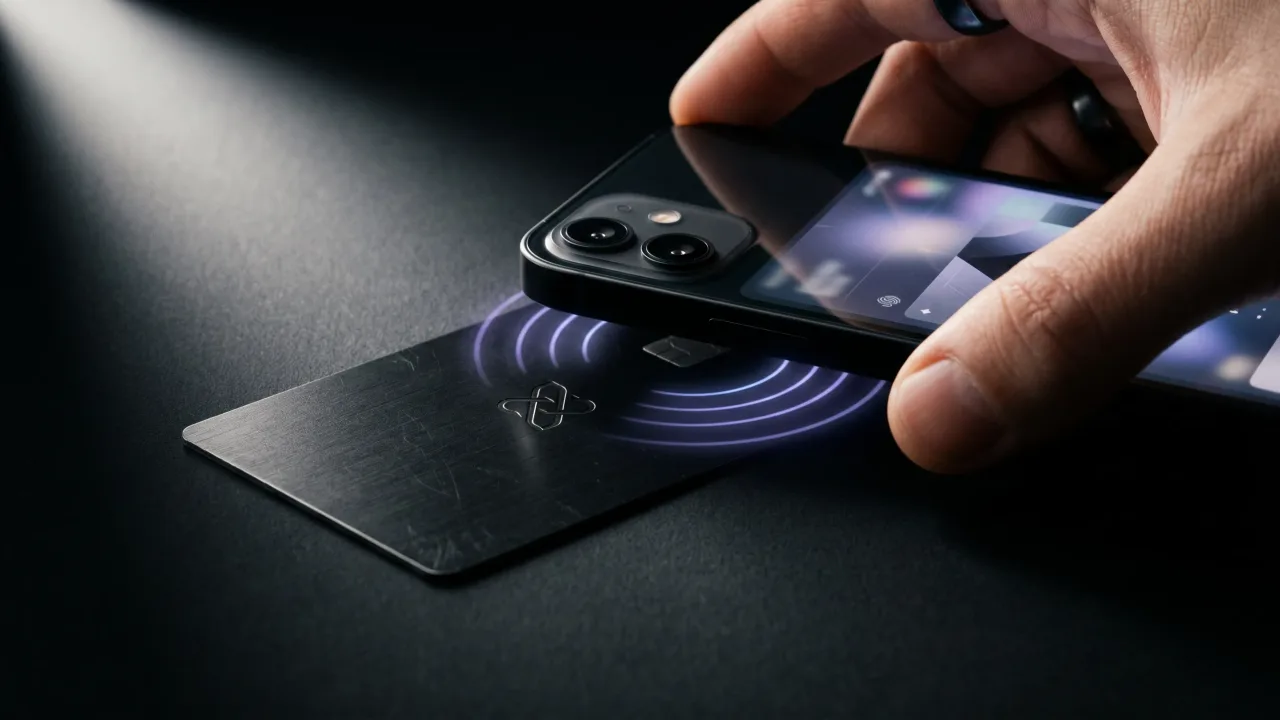
- Tap: an NFC card carries your link, so one physical tap opens your profile on their phone. iPhones from the XS onward read these in the background, no app required, which we cover in whether NFC cards work with iPhone.
The first three are free and native. The tap is the one that needs an object, and it is also the one people remember, because you handed them something instead of asking them to aim a camera.
What to put on your iPhone digital business card
The mistake is treating the card like a resume. Whoever opens it gives it a few seconds. Lead with the handful of things they came for.
- Name, title, and company, in that order.
- One phone number and one email, not a directory of each.
- A single primary link: your site, your booking page, or your main profile.
- A save-contact button so your details land as a vCard in their phone, not just in their memory.
A photo helps them remember your face, and one short line about what you do helps them remember why to call. Everything past that is weight. Our base guide to making a digital business card works through the fields in more depth.
Where the iPhone-only card runs out of road
The native tools are free and genuinely good for iPhone to iPhone. They also stop right where your networking gets serious.
NameDrop does not reach Android. A Contacts card carries no branding and nothing memorable. A Wallet pass still needs the other person to scan, or needs you to be nearby. None of it puts an object in their hand, and the object is the part that gets kept. NFC closes that gap: a metal card programmed with your profile link opens your page on almost any modern phone with a single tap.
That is the split most people settle on. Keep the digital card free, and spend only on the thing that shares it. You design the object in the configurator, the profile behind it stays free to edit for life, and a new number or title is one change online that every card you have handed out inherits.
Making a digital business card on iPhone is free and takes minutes, and for a lot of people the native tools are enough. Fill in your Contacts card, share it by NameDrop or a link, and add a Wallet pass if you want it on the lock screen. That covers iPhone-to-iPhone networking without spending a cent. The catch is reach and memory. NameDrop stops at other iPhones, and a shared link is as easy to forget as it is to send. If your card is doing real work, keep the profile free and give it something physical to ride on, so one tap opens your page on any phone and leaves an object behind. Build the free card first. Then upgrade the thing that hands it over.
Keep your iPhone profile free. Give it a metal card that opens on a tap, with no app on either phone.
Design your cardFrequently asked questions
Does the iPhone have a built-in digital business card?
Yes. The My Card entry at the top of your Contacts is a shareable contact you can send by AirDrop, Messages, Mail, or a link. On iOS 17 and later, NameDrop lets two iPhones swap details by touching. It costs nothing and needs no extra app.
How do I share my contact card on iPhone?
Open Contacts, tap your card, and choose Share Contact, then pick AirDrop, a message, mail, or a link. For another iPhone nearby, hold the two phones together and use NameDrop. The recipient saves your details in one tap.
Can I add a digital business card to Apple Wallet?
Yes, if you build it with a tool that generates a Wallet pass. Once the card is finished you tap Add to Apple Wallet and it installs, so you can open it from the lock screen and show its QR code. The native Contacts card does not turn into a Wallet pass on its own.
Do I need an app to make a digital business card on iPhone?
No. You can use the built-in Contacts card and NameDrop with nothing installed. Apps and profile builders add branding, a real web page, and analytics, but the person receiving your card never installs anything either way.
Do NFC business cards work with iPhone?
Yes. Every iPhone from the XS onward reads NFC in the background, so a tap opens your profile with no app to launch. Older iPhones can still read a tag using the scanner in Control Center. The card simply carries your profile link.
Is a digital business card on iPhone free?
The native route is completely free: your Contacts card, NameDrop, and sharing by link or QR code all cost nothing. Third-party apps offer free tiers too, usually one card with their branding. You only pay when you want a physical card or advanced features.