Making the QR code takes about a minute. The trouble shows up a year later, when the free generator that made it switches off its redirects and a box of printed cards starts opening an upgrade page. The mistake was made on the day the code was generated. Nobody could see it yet.
How to make a QR code business card that keeps working comes down to four decisions: what the code opens, which kind of code you generate, how big and how clean it sits on the card, and whether you test it before paying for print. They are the same whether you use a free QR code generator on a laptop or do it all on your phone.
What the QR code should open: a vCard or a link
A QR code on a business card can hold one of two things. A vCard QR code stores your contact details inside the pattern itself: name, phone, email, company. When someone scans it, their phone offers to save you as a new contact, with no website in between. Our explainer on what a vCard file is covers the format behind it.
A link QR code stores a web address. The scan opens a page, which can be a LinkedIn profile, a portfolio, a booking page or a digital profile with a "save contact" button on it.
The vCard version works offline and depends on no one. It also locks your details into the print. Change your number and the card is wrong. A vCard also packs a lot of text into the code, so the pattern gets denser and needs more space to scan reliably.
For most people the link is the better choice. The code stays small and simple, and whatever it opens can change while the card stays the same. That only holds if you control the page.
Static or dynamic QR code: decide before you generate
A static QR code contains your link or contact details directly. It works for as long as the destination exists, and no company sits in the middle. A dynamic QR code contains a short address owned by the generator, which then forwards the scan to your page. You can change where it forwards without reprinting, and most services count the scans.
That middle step is the risk. If the service closes, changes its pricing or ends your free trial, the forwarding stops and every card you handed out stops with it. Some free generators make dynamic codes by default and only mention the time limit in their terms. Read them before you print anything.
The safest setup combines both ideas: a static code that points to a page you own and can edit. Your own website works, and so does a digital profile on an address you keep. The code never changes, and the page behind it can be updated whenever your job title or number does.
| Code type | Can you change it later? | Main risk | Best for |
|---|---|---|---|
| Static vCard | No, reprint needed | Details go out of date | Short runs, details that rarely change |
| Static link to your own page | Yes, by editing the page | Page must stay online | Most professionals |
| Dynamic link from a generator | Yes, in the generator | Code dies if the service or plan ends | Campaigns where scan counts matter |
How to make a QR code business card in five steps
- Set up the destination first: the profile, page or contact details the code will open. Check it on a phone, because almost every scan happens on one.
- Copy the shortest version of the address. Fewer characters mean fewer squares, and a simpler code scans from further away.
- Open a QR code generator, choose the URL (or vCard) type and paste the address. Pick a static code unless you have a reason to pay for a dynamic one.
- Download the code as SVG or EPS if the generator offers it, or as a PNG of at least 1000 pixels. Vector files stay sharp at any size the printer needs.
- Place the code in your card design, leave white space around it and print one test card before you order the full run.
If a generator asks for an account before you can download a plain static code, use another one. Static codes are a public standard and cost nothing to produce.
How to make a QR code business card on your phone
You do not need design software. Most free QR code generator sites work in a mobile browser and save the image straight to your photos. Chrome on Android and on desktop can also make a QR code for any page you have open, from its share menu.
Many apps make one for you. The LinkedIn app has a personal QR code for every member, and a Discard digital profile comes with its own QR code that opens the profile. Both are links to pages you control, which is what you want on a card.
Free online business card makers then let you drop the image into a template from your phone. The weak point of a phone-only setup is the file quality. Send yourself the largest version available, not a screenshot, or the printed code can come out blurred.
QR code size, contrast and quiet zone on a business card
Print guides usually put the minimum size around 2 × 2 cm and recommend 2.5 cm to be safe, because older phone cameras struggle with fine detail. A long link or a full vCard makes the pattern denser, so it needs the larger end of that range.
The code also needs empty space around it. DENSO WAVE, the company that invented the QR code, specifies a margin four modules wide on every side, a module being one of the small squares. Push text, a logo or a card edge into that margin and phones start to miss it.
Contrast matters as much as size: dark squares on a light background, never the reverse, and no photo or texture behind the code. If you want a logo in the middle, raise the error correction level. DENSO WAVE describes four levels of error correction: level M can restore about 15% of a damaged code and level Q about 25%. A logo covers part of the pattern, so it needs that headroom.
Finish counts too. Glossy lamination and mirror-polished metal reflect light into the camera. Matte stock or a matte metal finish scans far more reliably, which we go into in our post on the metal business card with a QR code.
Where to put the QR code on the card
The back is usually the best place. The front keeps your name, title and logo readable, and the back gives the code the empty space it needs. A short line under the code, such as "Scan to save my contact", tells people what happens before they lift the phone.
Keep the code away from the edges and from any fold, cut or rounded corner. If the card has a lot going on, our guide on what to put on the back of a business card covers how to fit the code alongside everything else.
Test it on three phones before you print
Print one card at actual size on the paper or finish you will order. Then scan it with an iPhone, an older Android and whatever phone a friend has. On iPhone, the Camera app reads QR codes directly, and Apple's guide to scanning a QR code with the iPhone camera also shows the Scan Code control in Control Center.
- Scan in dim light, not only at your desk
- Scan from about 20 to 30 cm, the distance people hold a card at
- Check the page loads fast on mobile data, not only on Wi-Fi
- Tap the save contact button and see what lands in the phone's contacts
If any phone hesitates, make the code bigger or the link shorter before you change anything else.
When a QR code alone is not enough
We make NFC business cards, so take this section knowing that. A QR code asks the other person to open the camera, aim, wait and tap a notification. It works on almost every phone, and at a busy stand it still takes a few seconds while you both stand there.
An NFC chip opens the same page when the phone touches the card. Every Discard card carries both: the chip inside and a QR code on the back, pointing to the same profile you can edit. The QR code covers the phones without NFC, and the tap covers everyone else. Our comparison of NFC vs QR code business cards goes through when each one wins.
If you only need a QR code, a well-made paper card does the job. If you hand out cards every week, a wood card starts at €39.90 and a metal one at €44.90, both with the first year of the profile included and €19.90 a year after that.
Make the destination first and the code second. Point a static QR code at a page you own and can edit, print it at least 2 cm wide with a clear margin, dark on light, on a matte finish, and scan a test card on three phones before you order the run. Skip dynamic codes from free generators unless you are ready to pay for them for as long as the cards are in circulation. Do it that way and the card still works after you change jobs, which is the point of putting a code on it.
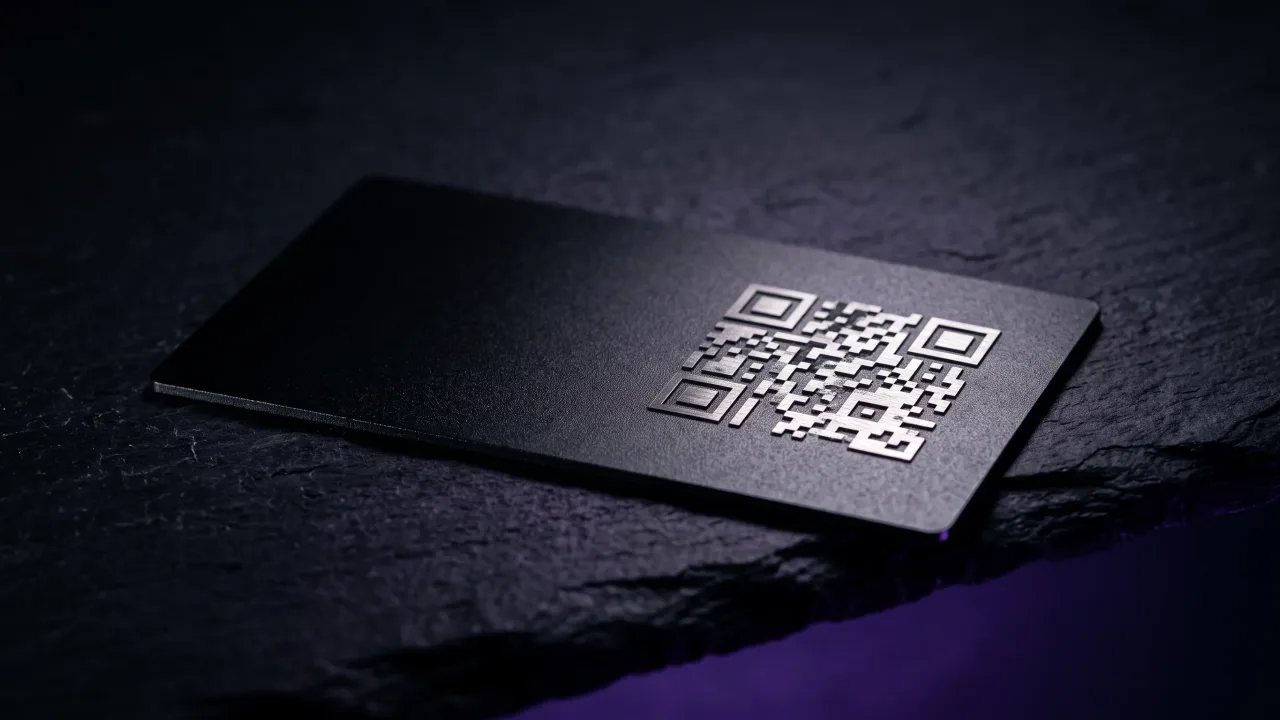
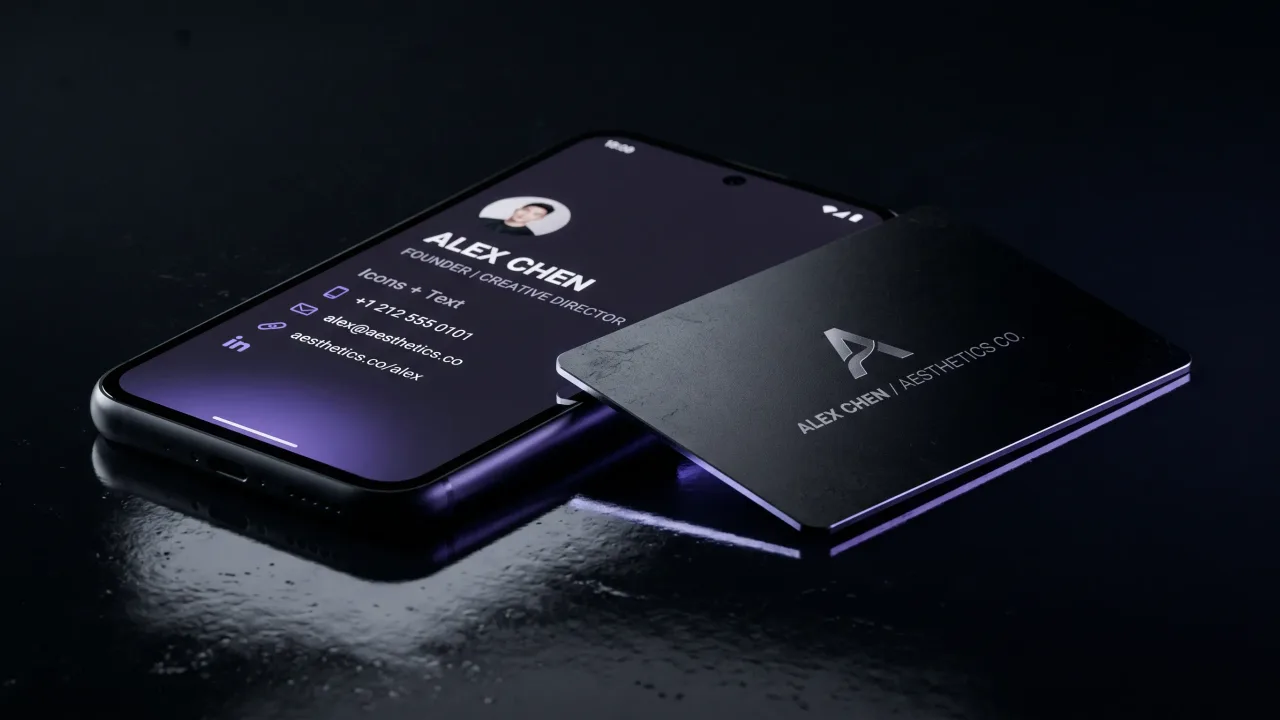
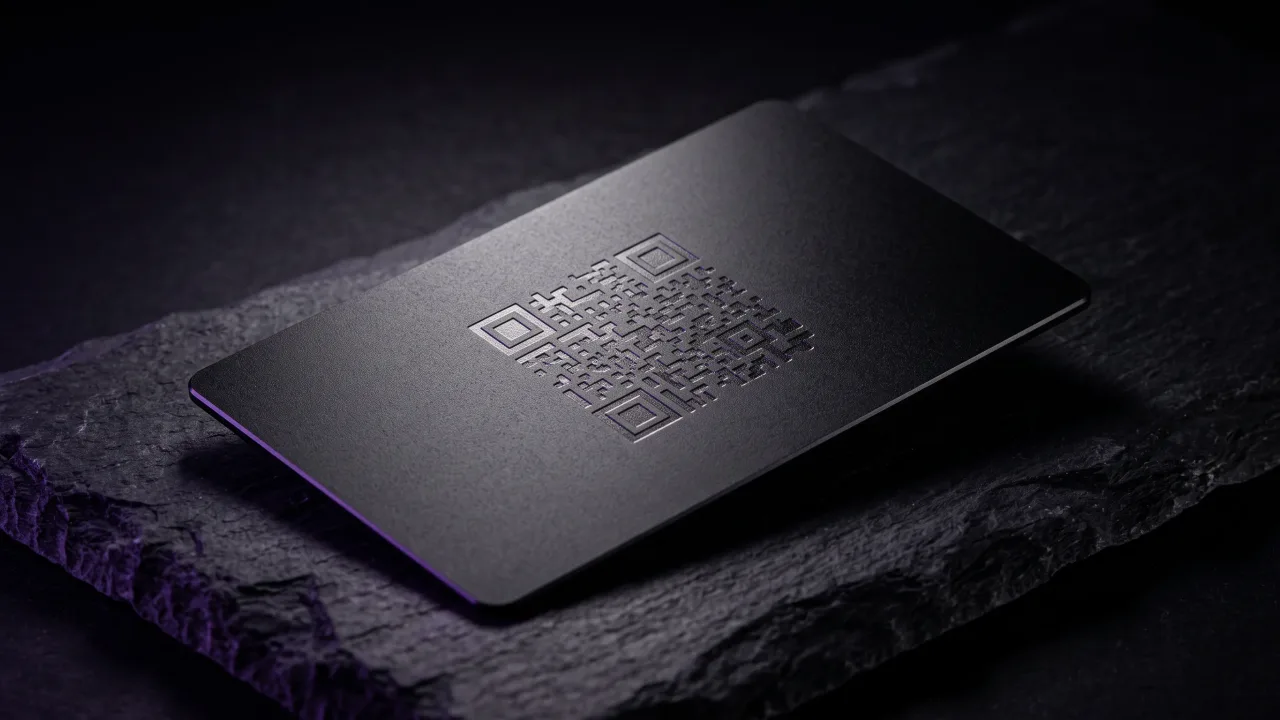
A metal or wood NFC card with a QR code on the back, both opening a profile you can edit.
Design your cardHow do I make a QR code for my business card for free?
Use any free QR code generator, choose the URL or vCard type, paste your link or details and download a static code. Static codes never expire and need no account. Pick SVG or a large PNG so the print stays sharp.
Should my business card QR code be a vCard or a link?
A link to a page you control is the better choice for most people. It keeps the code small, and you can change your details without reprinting. A vCard works offline but is out of date the moment your number or job changes.
Do QR codes on business cards expire?
Static QR codes do not expire; they work as long as the link inside them does. Dynamic codes from a generator stop working if the service shuts down or your plan ends. Check the generator's terms before you print.
How big should a QR code be on a business card?
Aim for at least 2 × 2 cm, and 2.5 cm if you can fit it. Longer links and vCards need more space because the pattern is denser. Leave a clear margin around the code as well.
Can I make a QR code business card on my phone?
Yes. Free QR generators work in a mobile browser, Chrome can make a QR code from its share menu, and apps such as LinkedIn give you a personal code. Save the full-size image rather than a screenshot so it prints cleanly.
Where should the QR code go on a business card?
On the back, in most cases. It keeps the front readable and gives the code the empty space it needs to scan. Add a short line under it saying what the scan does.