Most Android phones have had NFC built in for over a decade, so the hardware for a digital business card has been riding in your pocket the whole time. A digital business card for Android is not an app you install and forget. It is a live web profile you share three ways: a tap, a scan, or a plain link.
That framing decides what you build and what you skip. The profile does the work. Android just hands you three doors to it: NFC for a tap, Google Wallet for a saved pass, and a QR code for anyone across the table. Setting up all three takes about five minutes.
Can you keep a business card on your Android phone?
Yes, in the sense that matters. Android has no built-in business card slot the way it has Contacts or Google Wallet, so what you keep is a link to a profile hosted on the web. The phone holds the shortcut. The profile lives online, where you can edit it after the fact.
That is the whole advantage. A link can be tapped, scanned, added to Google Wallet, or dropped into a chat, and it points at a page you change whenever a number or title moves. A contact file saved to the phone cannot do any of that, and it ages the day you send it.
How to make a digital business card on Android
You do not need an app. Most Android services run in the browser, so you build the profile on a web page and share the link straight from there.
- Open a digital business card builder in Chrome and fill in your profile: name, title, company, photo, and a save-contact button.
- Add your links: phone, email, website, socials, and a booking or portfolio link if you have one.
- Pick a short handle so the address is easy to read aloud or type.
- Preview it on your phone, then send the link to yourself to confirm the save-contact button drops you into Android's Contacts app.
That builds the card. Because it lives on the web, the same profile opens on any phone that scans it, iPhone included, and you edit it once for every card you have ever handed out. If you want the ground rules first, what NFC business cards are covers the basics.
How to add your card to Google Wallet
Google Wallet is Android's answer to the Wallet pass, and it puts your card two taps away at any moment. The pass carries a QR code and a link, and it sits beside your loyalty and boarding passes.
- In your card's share or settings menu, choose Add to Google Wallet.
- Google shows a preview of the pass. Check the details and tap Add.
- The card lands in Google Wallet. Open the app, select it, and the QR code fills the screen.
The pass works offline because the code and link are stored on the phone, and it syncs across the devices signed into your Google account. One thing to know: the details printed on the pass face are fixed when you make it, so treat the pass as a label and the link behind it as the part that stays current. Google Wallet handles the storage. Your digital profile handles everything that changes.
Does your Android phone have NFC?
Almost certainly, if it was made in the last ten years. NFC is the chip that lets two phones swap data by touching, and it ships on nearly every mid-range and flagship Android since around 2015.
To check, open Settings and search NFC, or look under Connected devices. If the toggle is there, your phone can read a card with a tap. Near-field communication is the same standard behind contactless payments, so if you tap to pay, you can tap to share.
One difference from iPhone is worth a line. Older Android phones sometimes need NFC switched on by hand in Settings, and a handful of budget models skip the chip. Newer phones read most cards in the background with no app open, the same way a recent iPhone does. Our guide to NFC cards on iPhone covers the other side.
Three ways to share your card on Android
This is where Android earns its keep. You are not locked into one method. You pick whichever fits the moment.
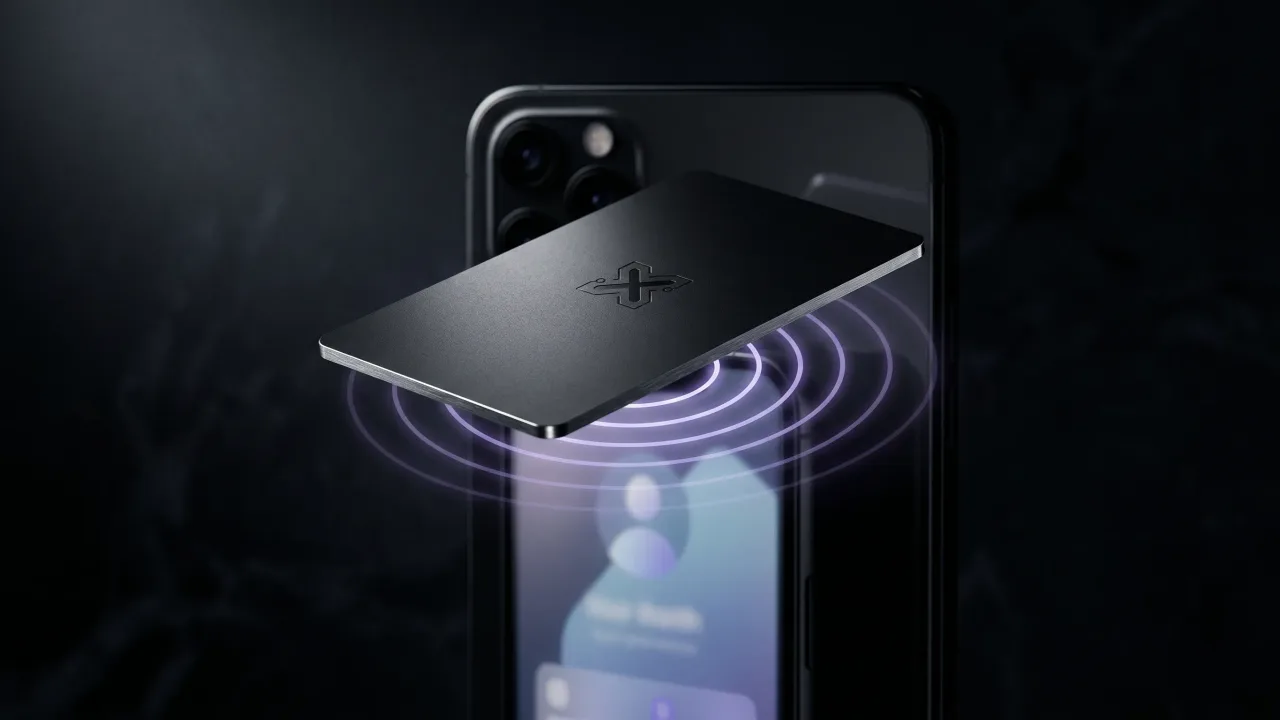
- Tap: hold an NFC card to the back of their phone, and your profile opens in their browser with nothing to install.
- Scan: pull up your Google Wallet pass or profile QR code and let them scan it with their camera.
- Send: drop the link into a text, a chat, or an email when the person is not in the room.
All three land on the same page, and that page has one job. Whether they tapped, scanned, or clicked, one press of the save-contact button files you into their phone. The route changes. The finish line does not.
Where a phone-only card runs out of road
A digital card on your Android solves storage and sharing on your own phone. It does nothing for the handoff, which is the moment that decides whether you are remembered.
You still unlock the screen, open Wallet or the browser, find the code, and angle the phone for a scan. In a loud room or across a wide table, that is a few seconds of fumbling while the other person waits. And nothing gets left behind. No object sits in their hand or on their desk, so the exchange depends entirely on whether they scanned in time.
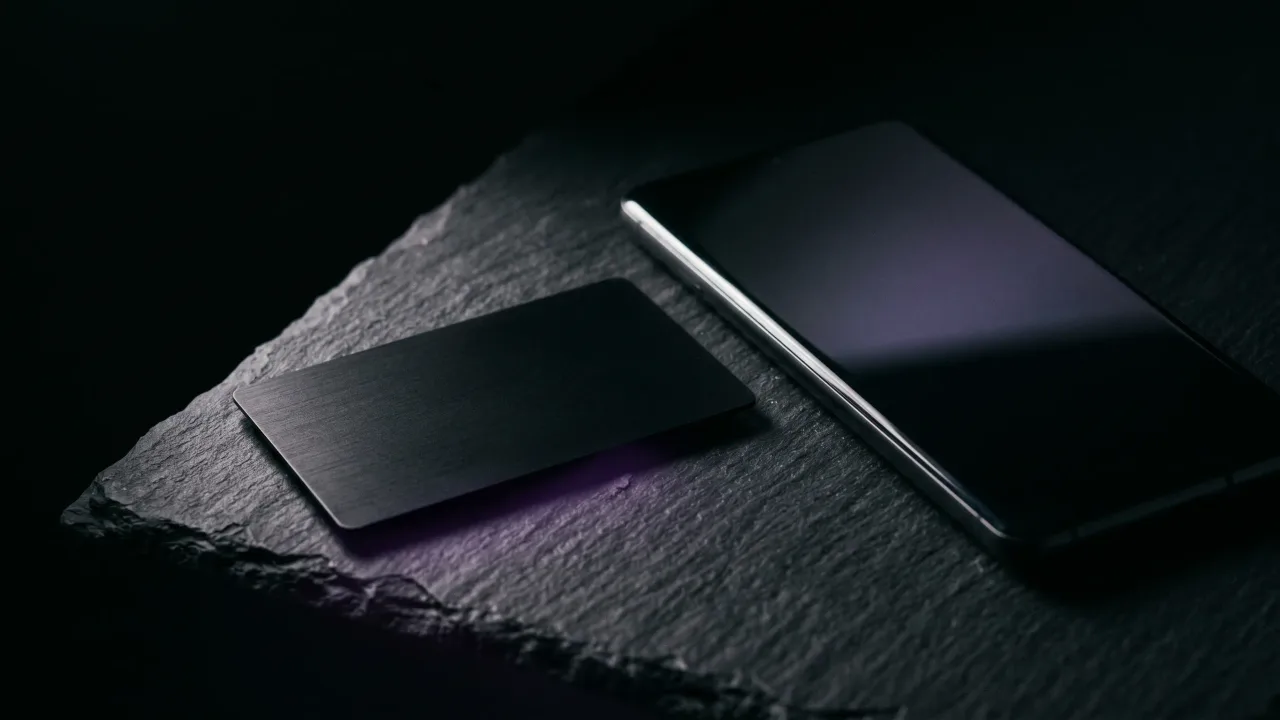
A physical card closes that gap. It carries the same profile link on a chip, so one tap opens your page with nothing to hunt for and nothing to install. The phone card and the physical card are not rivals. The card is the front door, and the phone is the spare key.
The metal card that any Android can read
The cleanest setup uses both. Keep the Google Wallet pass as your always-on backup, and hand people a card that does the tap for them.
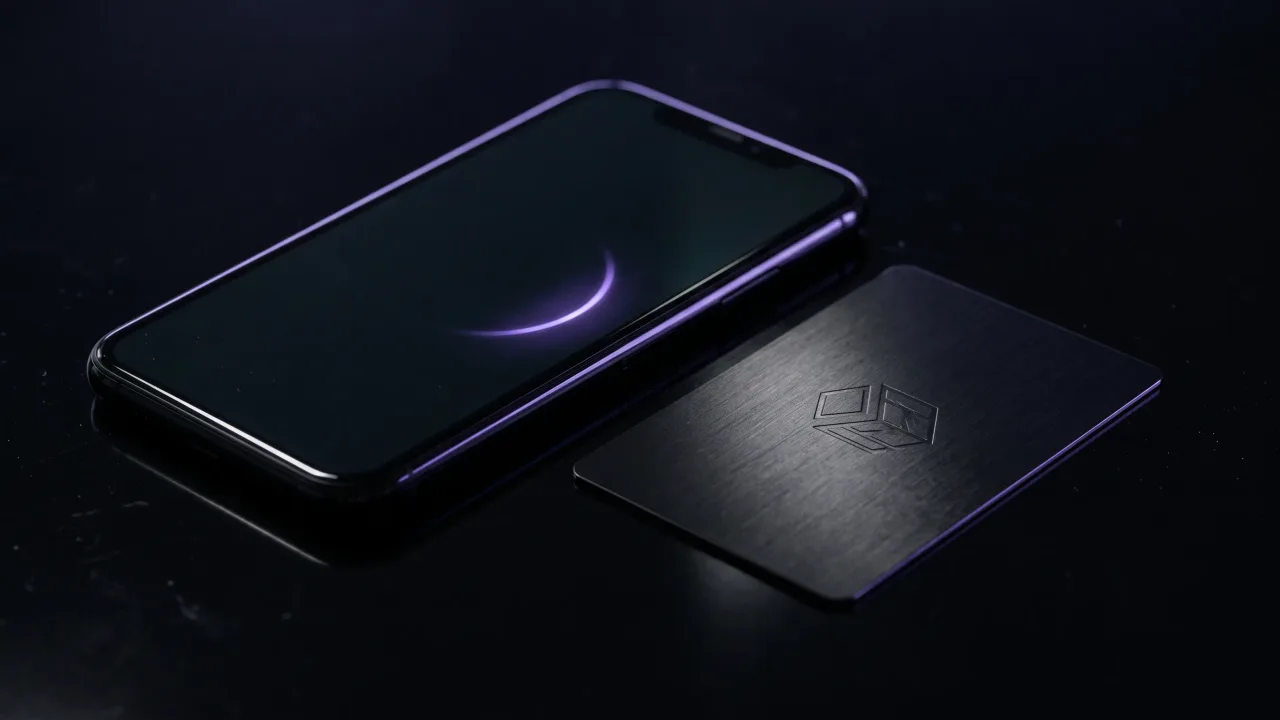
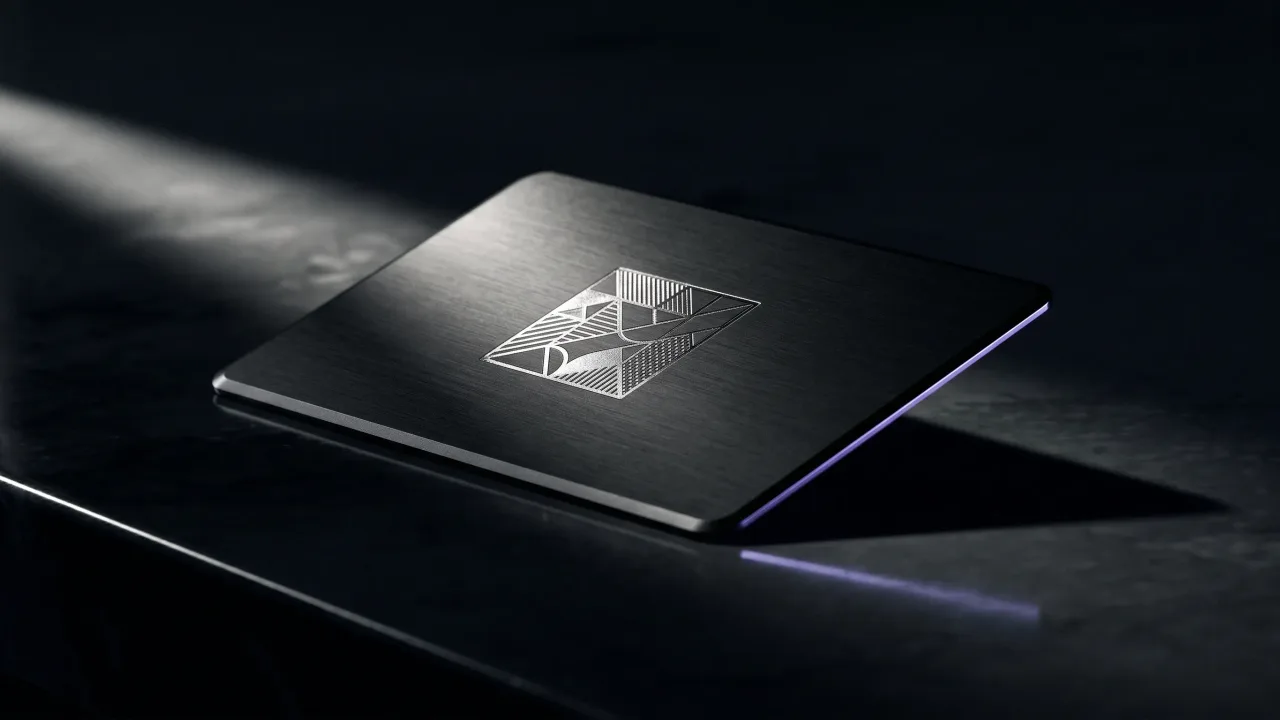
A Discard card is engraved metal with an NFC chip inside, pointing at the same profile your phone links to. One tap on any modern Android or iPhone opens your page, and they save your contact in a second. You edit that page whenever you like, so the metal never goes stale and neither does the pass beside it. For makers and solo brands, the creative angle shows how the object itself does some of the talking. And because it taps instead of scans, it clears the fumbling a phone-only card leaves in place.
A digital business card for Android is worth building, and the browser makes it quick. You share it three ways, by tap, by scan, or by link, and Google Wallet keeps the card two taps away in your pocket. Where it stops is the handoff and the object. A phone card cannot be placed in someone's hand, and pulling it up still takes a few seconds of screen-fumbling in front of a waiting stranger. Pair it with a metal card that taps to the same editable profile, and you keep the speed while adding the one thing a phone cannot give: something worth keeping. Build the profile this afternoon. Then give it a body people can hold.
Put your Android card's link on something people keep. Design a metal NFC card that taps to your live profile on any phone, with no app and no scan.
Design your cardDo you need an app to use a digital business card on Android?
No. Most services run in the browser, so you build and share your card from a web page. The person receiving it needs no app either. They tap, scan, or click, and your profile opens in their browser.
Does every Android phone have NFC?
Most Android phones made since around 2015 have NFC, and nearly all mid-range and flagship models include it. A few budget phones skip it. To check, search NFC in Settings; if the toggle is there, your phone can tap to share.
How do I add a business card to Google Wallet on Android?
Open your card's share or settings menu and choose Add to Google Wallet. Google shows a preview; tap Add and the card lands in the Wallet app with a QR code. It works offline and syncs across the devices signed into your Google account.
Can I share my Android business card with an iPhone user?
Yes. The profile behind your card opens on any phone, iPhone included. Tap an iPhone with an NFC card and it reads in the background on most recent models. A QR code or a sent link works the same across both platforms.
Is a digital business card free on Android?
Several services offer a free tier that covers one profile with a link and a QR code, and Google Wallet itself costs nothing. Paid plans usually add multiple cards, custom branding, and lead capture. A working card costs nothing to start.
What is the difference between a digital business card and an NFC card on Android?
A digital business card is the web profile. An NFC card is a physical object that opens that profile with a tap. Your Android can share the profile by QR code or Google Wallet, while the NFC card adds the handoff: something to place in someone's hand.